
Losing your TV remote can be quite frustrating, especially when you need to adjust the volume. Thankfully, there are several effective methods to unmute your TV without relying on the remote. Whether you own a smart TV or a more traditional model, techniques ranging from utilizing built-in controls to employing smartphone technology and smart home devices can come to your rescue.
Introduction
The moment you realize your remote control is missing usually coincides with needing it the most. Fear not, for there are numerous methods you can apply to unmute your TV without the remote’s assistance. This guide presents various ways, from leveraging built-in controls to using modern smartphone apps and smart home solutions, to regain audio control efficiently.
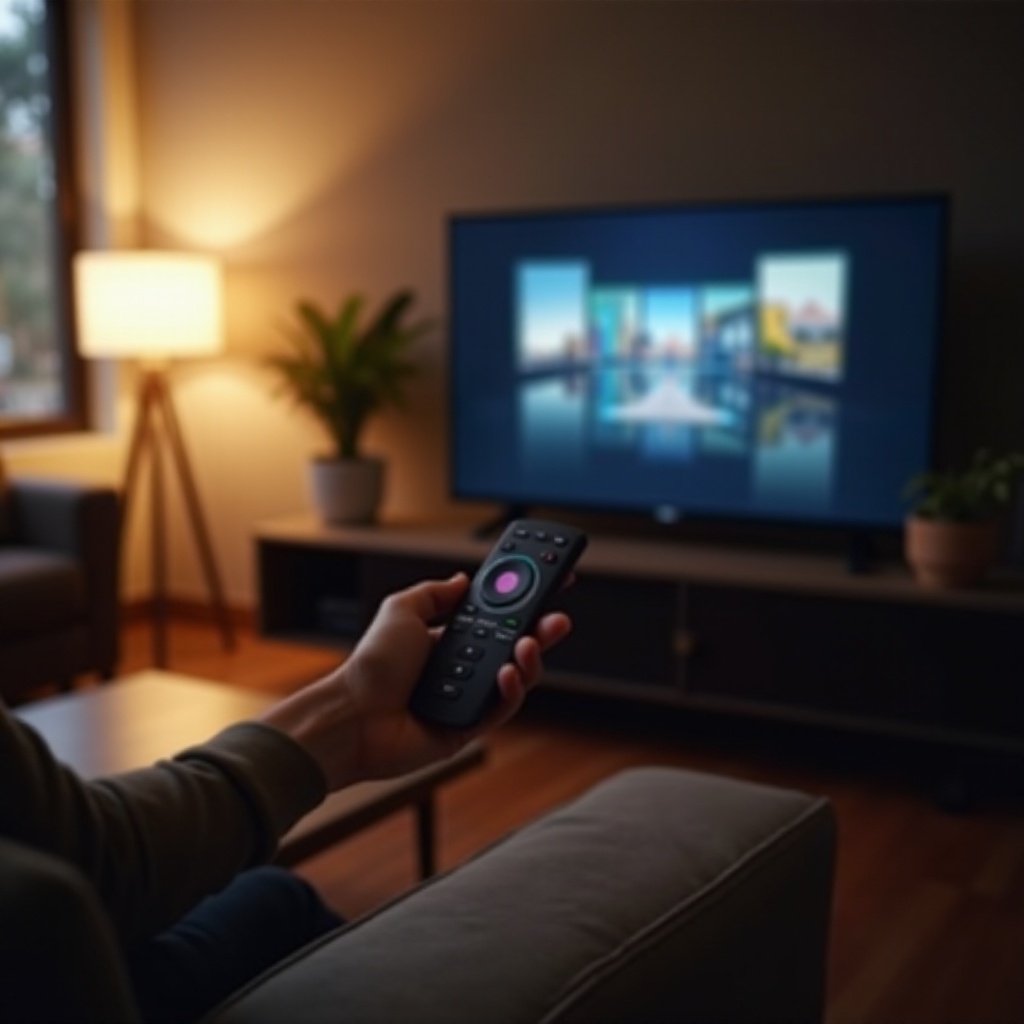
Understanding Your TV’s Built-in Controls
Many television sets still come equipped with physical buttons that allow basic control over functions like power, channel switching, and volume adjustments, including muting or unmuting the TV. Knowing how to use these buttons can make your viewing experience much smoother in the absence of a remote.
-
Locating Physical Buttons on Modern TVs
Start by examining the edges of your TV frame. Many modern TVs have discrete control panels located on the side, bottom, or back. These buttons can be physical or even touch-sensitive panels depending on your TV’s model. -
Common Button Functions Explored
Generally, these buttons include up and down options for both volume and channels. There’s typically a menu button that you can use to access the audio settings. Press this menu button and navigate using the directional keys to modify and unmute the volume on your TV. Some TV models even feature a dedicated mute button, offering a straightforward solution.
If in-built controls don’t do the trick, progressing to modern technology is your next best step. Smartphones provide a practical alternative through specific apps to replace your missing remote.
Using Mobile Solutions for TV Control
Smartphones can be excellent remote control replacements using specialized applications. These apps can effortlessly step in when your remote is unavailable, allowing you to unmute your TV effectively.
- Manufacturer-Specific Apps for Easy Access
Many TV brands offer dedicated apps that allow you to control their products: - Samsung SmartThings: A versatile app that easily syncs with Samsung TVs.
- LG TV Plus: Allows you to control LG TVs with minimal setup.
-
Sony TV SideView: Provides seamless connectivity with Sony televisions.
-
Third-Party Remote Control Apps
If your TV brand does not offer an app, generic universal remote apps can work across multiple brands. Apps like ‘AnyMote’ or ‘Universal Remote TV Smart’ are popular choices. After downloading, connect your phone and TV over the same WIFI network for smooth operation. -
Troubleshooting App Connectivity
Ensure both your TV and the app are on the same WIFI network. If you encounter connectivity issues, try restarting either the app or your phone to re-establish the connection. Regularly updating both your TV’s firmware and the app ensures you achieve the best performance.
After leveraging physical controls and mobile solutions, voice commands and smart home integration offer more advanced methods. These provide hands-free control over your TV.
Voice Control and Smart Home Integration
Voice control features in smart TVs mean you can operate your TV’s mute function through simple voice commands, using smart assistants.
-
Setting Up Voice Control on Popular Smart TVs
Begin by enabling the voice control feature within your smart TV’s settings menu. Each brand offers distinct voice assistant options. -
Integrating with Smart Home Assistants
- Google Assistant: Use it with your Google Home device or app on your phone.
- Amazon Alexa: Control your volume settings easily with an Echo device.
-
Apple Siri: Pair your TV using Apple HomeKit with your iPhone or iPad.
-
Voice Command Tips for Seamless Control
Use commands like ‘Unmute the TV’ or ‘Increase the volume’ for the best results. Make sure your smart assistant device is positioned close enough to hear commands clearly.
Moving beyond voice controls, some alternative methods can enhance the efficiency of managing your TV’s volume settings.
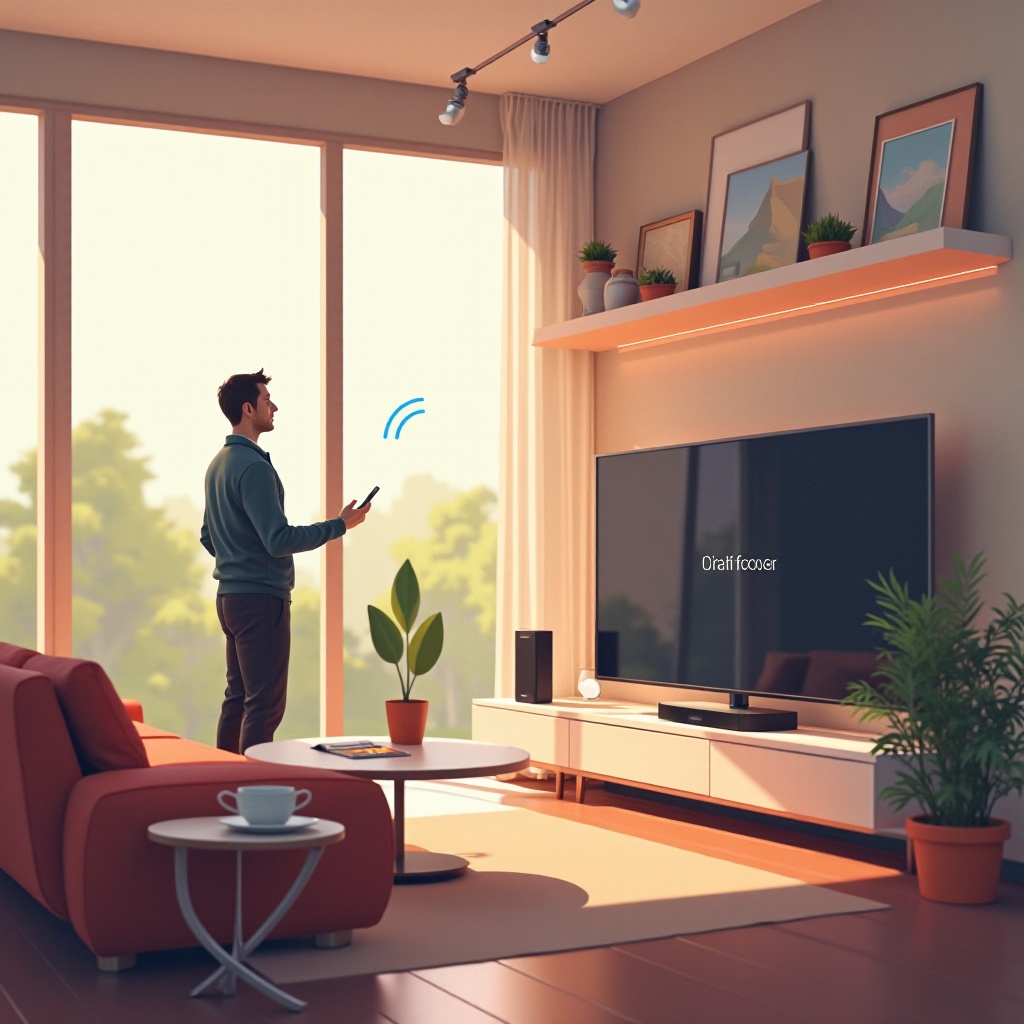
Alternative Methods and Tips
For tech-savvy individuals, HDMI-CEC and Bluetooth technology provide additional methods to manage TV audio effects.
-
HDMI-CEC and Device Control
Many TV models support HDMI-CEC, enabling devices connected via HDMI, such as gaming consoles or streaming boxes, to control certain TV functions. Activate HDMI-CEC in your TV settings, and use the linked device to manage volume. -
Using Bluetooth Devices for Volume Control
Connect Bluetooth headphones or speakers to your TV. Many allow direct audio level control, offering another layer of control without a remote.
While these methods provide numerous solutions, consulting professional assistance may be needed for complex issues.
Troubleshooting and Professional Help
There are cases where basic solutions aren’t enough, and knowing when to call for professional help can save time and ensure your TV functions optimally.
-
Resolving Common Issues Without a Remote
Always ensure your TV isn’t stuck on a secondary audio source or silent mode, and verify that all connected devices are functioning. If complications continue, refer to your TV’s user manual or online support. -
Knowing When to Seek Professional Assistance
If your TV’s buttons or inputs appear faulty, consulting a technician may be necessary. A professional can address intricate issues beyond your regular troubleshooting scope.
Conclusion
Learning how to control and unmute your TV without a remote requires understanding a blend of built-in, mobile, and advanced smart home solutions. Armed with these strategies, you can effortlessly manage TV audio, even when your remote is out of reach.
Frequently Asked Questions
How do I use my phone as a remote?
Download the TV manufacturer’s app or a universal remote app from your app store. Connect your phone and TV to the same WIFI network.
What if my TV has no physical buttons?
Use a smartphone app or voice control through a smart assistant. Purchase a universal remote if these options are unavailable.
Can I control my TV with a universal remote?
Yes, configure a universal remote by following the manufacturer’s instructions to sync it with your TV for full control functionality.