
Introduction
Nintendo Switch’s versatility has made it a top choice for gamers who love flexibility in their gaming setups. Many users want to project their gameplay onto a large screen without relying on the official dock. This guide explores the essential equipment, provides detailed steps, and discusses the benefits and challenges of connecting your Switch to a TV without a dock.
Understanding the Nintendo Switch Dock
The Nintendo Switch Dock is a vital accessory that allows charging and video output from the console to a TV. Some users find it bulky or experience overheating issues. Understanding how it functions will highlight why alternatives might be preferable.
The dock supports charging and connects the console to the TV through an HDMI cable. Replicating this function requires a straightforward setup with minimal equipment.
Necessary Equipment for Dockless Connection
To connect your Switch to a TV without using a dock, gather the following equipment:
- USB-C to HDMI Adapter: This adapter connects your Switch to the TV. Opt for reliable brands like Anker or UGREEN for better performance.
- USB-C Power Adapter: Ensure your console receives power. Use the original adapter or find a compatible replacement.
- High-Quality HDMI Cable: A good cable will ensure clear video and audio transmission from the console to the TV.
Having high-quality components prevents connectivity issues and protects your device.
Step-by-Step Guide to Connecting Without a Dock
Follow these steps to set up your Nintendo Switch with your TV:
- Gather Your Equipment: Ensure you have each piece of necessary equipment, including adapters and cables.
- Position Your Console: Place the Nintendo Switch near the TV to prevent strain on the connectors.
- Connect the HDMI Cable: Attach one end to the HDMI port on the adapter and the other to your TV’s HDMI port.
- Power Up the Adapter: Insert the USB-C power adapter into the adapter and plug it into a power source to maintain a charge.
- Attach the Console: Connect the Nintendo Switch to the USB-C input on the adapter, allowing the TV to recognize the console.
- Adjust TV Input Settings: Switch your TV input to the correct HDMI channel for a seamless connection.
If issues arise, verify connections and confirm the functionality of all cables and adapters. Check the TV and console settings for possible adjustments.
Benefits and Limitations of Dockless Connection
Connecting without a dock offers several advantages:
- Portability: Easily move your gaming setup to different locations.
- Cost Efficiency: Avoid the expense of replacing or buying a new dock.
- Space-saving: Maintain a streamlined gaming area without extra bulk.
However, be aware of these potential drawbacks:
- Stability Issues: Without the dock’s secure hold, your setup might be less stable.
- Compatibility Concerns: Not all adapters work well. Research to ensure compatibility and avoid performance issues.
Considering both benefits and challenges will help determine if this setup aligns with your needs.
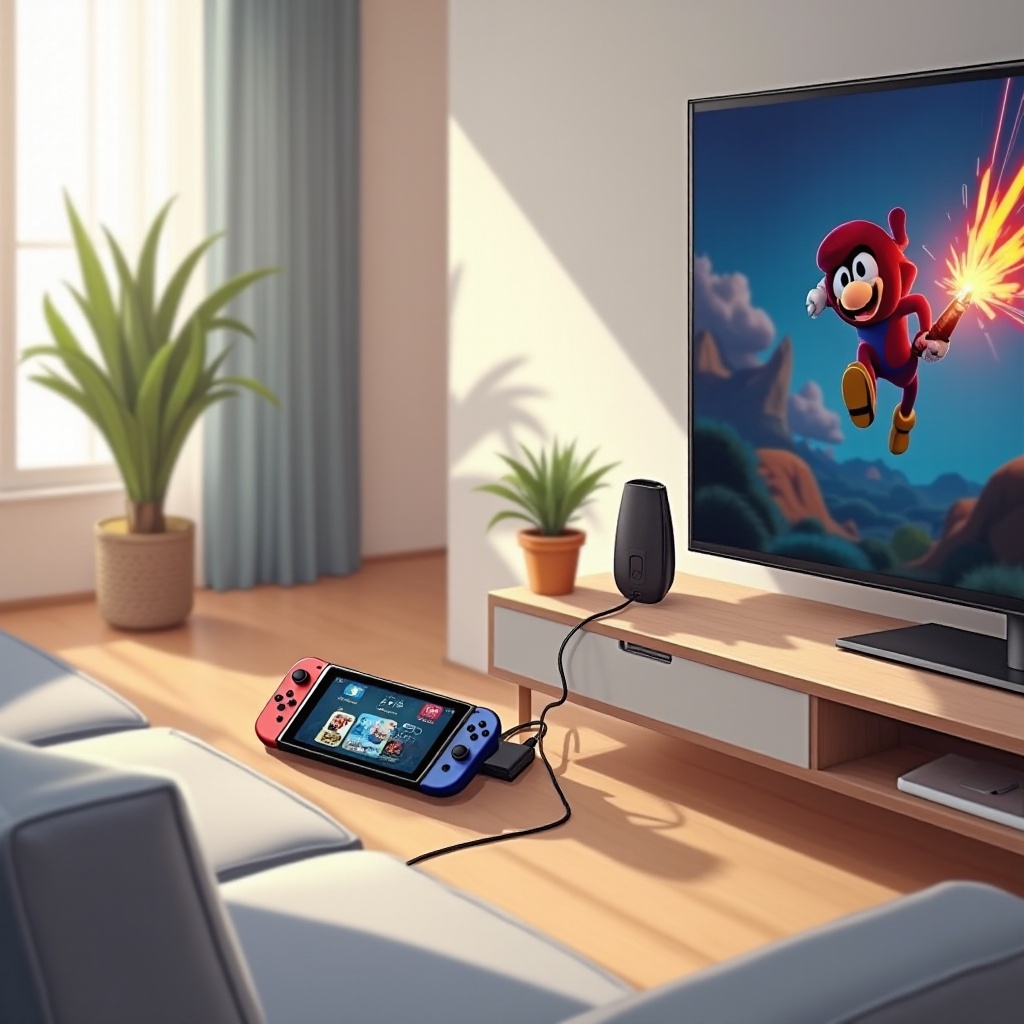
Comparing Docked vs. Dockless Setup
Choosing between a docked and dockless setup depends on your specific needs:
- Docked Setup: Offers stable, reliable connections with maximum compatibility. Ideal for a stationary gaming setup.
- Dockless Setup: Provides flexibility and portability, perfect for gamers who move frequently or prefer a minimalist setup.
Understanding the pros and cons of each option will guide you in choosing the best method for your gaming habits.
Conclusion
Connecting your Nintendo Switch to a TV without the dock is both possible and can enhance your gaming. With the correct equipment and steps, you can enjoy a seamless gaming experience on a big screen. Weigh the advantages and limitations to decide if this approach fits your style.
Frequently Asked Questions
Can I connect my Nintendo Switch to any TV without a dock?
Yes, as long as the TV has an HDMI input, you can connect your Switch using a USB-C to HDMI adapter and the appropriate cables.
What should I do if the display quality is poor?
Ensure connections are secure and use high-quality cables. Adjust TV settings and update the console’s software for better performance.
Are there risks with using third-party adapters?
Low-quality adapters may cause issues or damage your console. Use reputable brands to ensure safety and performance.